A LITTLE HELP
Space to
figure it out.
Setup and support for Markdown Quick Look.
Get started
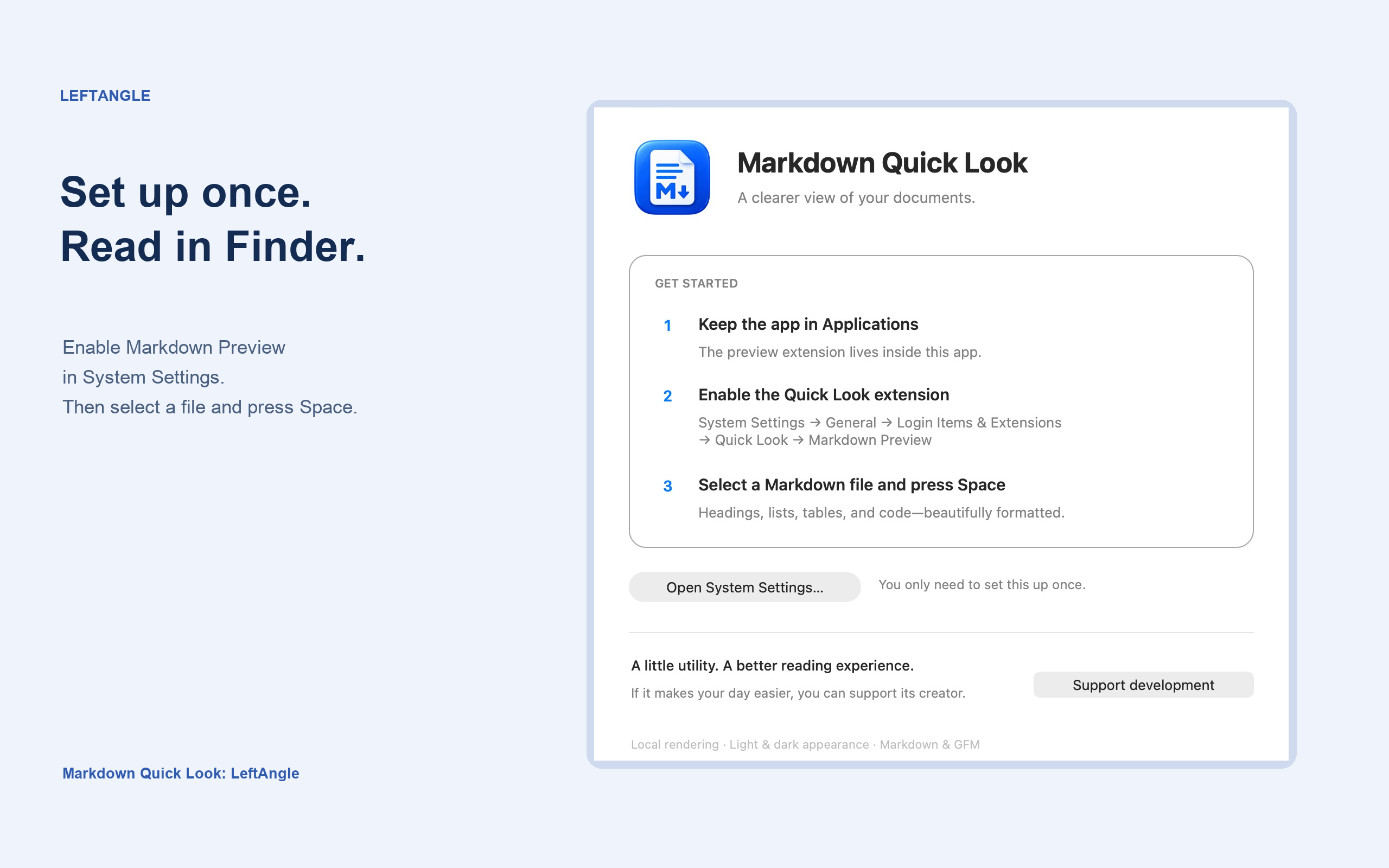
- Keep Markdown Quick Look in your Applications folder and open it once.
- Open System Settings and find the Quick Look extensions. On recent macOS versions, look under General → Login Items & Extensions → Quick Look. The location varies by macOS version.
- Enable Markdown Preview.
- Select a Markdown file in Finder and press Space.
Download a sample Markdown file to try a preview.
Requirements
An Apple Silicon Mac running macOS 13 or later. Intel Macs are not currently supported. Files must use UTF-8 encoding and be no larger than 10 MB. Supported extensions are .md, .markdown, .mdown, and .mkd.
Seeing plain text or no preview?
- Confirm the app is in Applications and has been opened at least once.
- Check that Markdown Preview is enabled in System Settings.
- Close the preview and open it again. If macOS has not picked up the extension, try signing out and back in.
- If another Markdown preview extension is enabled, temporarily disable it and try again.
- Try the sample file above to rule out file size or encoding issues.
Why don’t images and links work?
Previews are intended for reading local Markdown. Images appear as placeholders, links are inactive, and raw HTML is shown as text. Preview content does not load external resources.
Optional tips
The App Store edition offers optional, repeatable one-time tips through Apple. Every preview feature remains free. If tip options are unavailable, you can keep using the app. For Apple purchase or refund help, visit Apple’s billing support.
Get in touch
Email support@leftangle.app. Include your macOS version, app version, and what happened. If useful, attach a small sample that reproduces the issue. Please remove private or sensitive information first.